

Course evaluation process – a manual
All programmes at undergraduate and advanced level level have a ready-made template for a course evaluation questionnaire, which contains the four general questions. If you wish to add course-specific questions, please follow the instructions on this page to create the course evaluation.
Course evaluations in Canvas
As a teacher or course administrator, you can now create your course evaluations (undergraduate and advanced level) directly in Canvas. Course evaluations in Canvas
Contents of the template
The template contains the four general questions, which are compulsory for all course evaluations at KI. It also includes a standard introduction, three email templates and the other correct settings that must apply to all course evaluation questionnaires at KI.
Each programme has a programme-specific template. Some programmes also have templates that include work placement questions intended for the programme’s courses involving work placements. Select that template if the course is a work placement course. It is important that you use the programme template when creating your course questionnaire to ensure that the automatic settings are correct.
Create survey
- Click Survey/New survey/New survey from template. NOTE! Choose the template for your programme (choose the template that starts with NEW TEMPLATE and the name of your programme)
- Click next
- Important! Name the survey: Course code_Course name_Term (example: 5MT008 Applied communication HT22)
- Click Finish
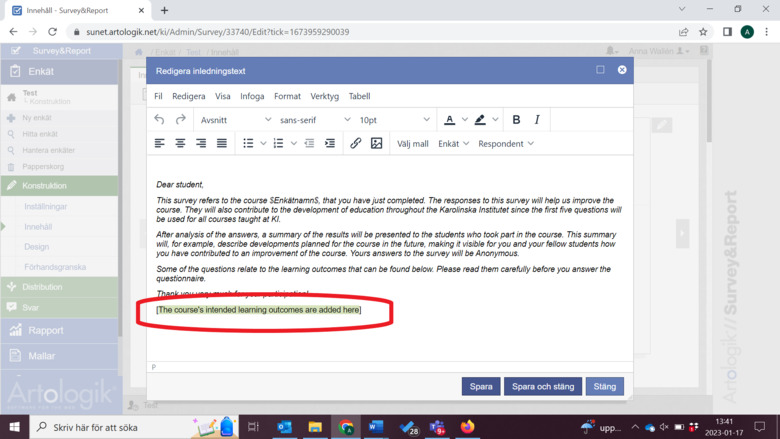
- If you have got course specific questions to add to the survey you do that under construction/content in the left menu.
- Create a new page for your course-specific questions by clicking the page with the plus (+) icon in the top menu (when you are on the last page of the survey). You can easily import questions from old surveys, see instructions here.
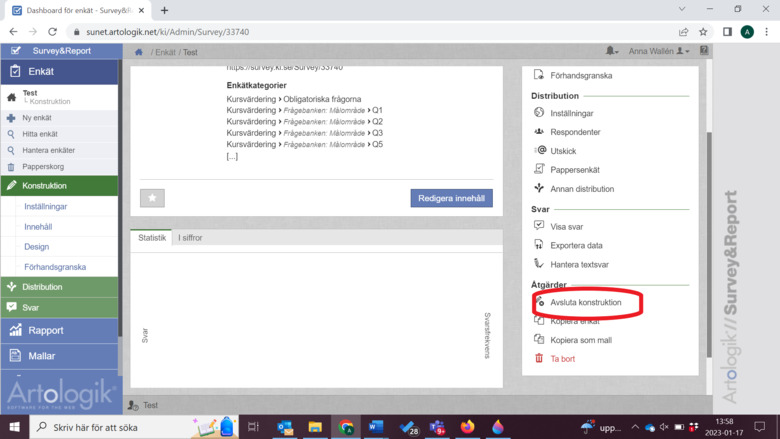
- Once you have finished the survey, go back to the first page by clicking on the course name in the left corner and then Finish construction.
Distribution
8. Click on Distribution/Settings in the left menu.
9. Enter the publish period by setting the start date to the last day of the course and the end date to 14 days later.
10. Click Save (the diskette icon) in the top menu.
11. Click Respondents (left menu)
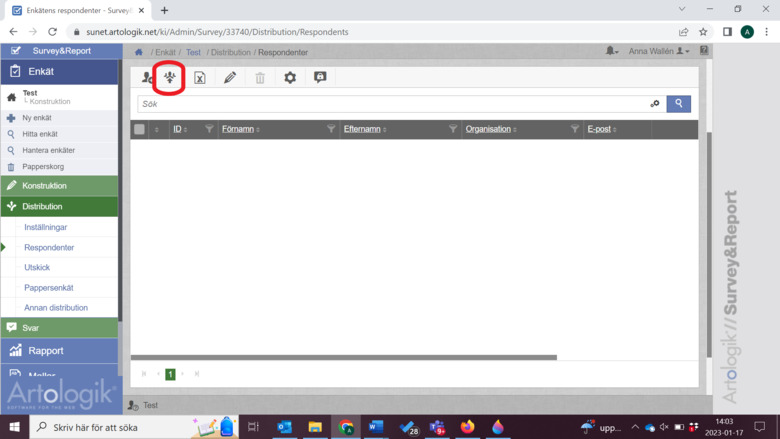
12. Click Import respondents and choose from an Email list
13. Paste all email addresses (list from Ladok). Click next.
14. Check that the list is correct, then click import.
15. Click on Distribution/channels (left menu)
16. Activate all three emails by clicking the check box to the right of each post (time settings and survey text are already configured in the template and do not need to be changed unless you wish to customize them).
Distributing reports
If you have been using the programme template for your course, two reports will be created automatically after the surveys closing date. An automatic mail saying that the report is done is sent to the creator of the survey. This link will also be sent automatically to all respondents of the survey.
Links for the reports is replacing the former PDFs. You find the reports at the bottom of the first page of the survey in KI survey.
- Short - Without text answers. This link should be published on the course open web and on Canvas. This link will be sent automatically to all respondents of the survey.
- Full - Includes all text and should be sent to course leader.
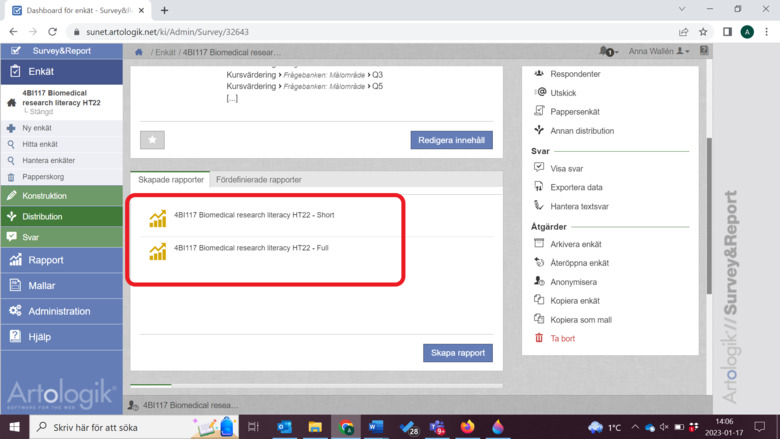
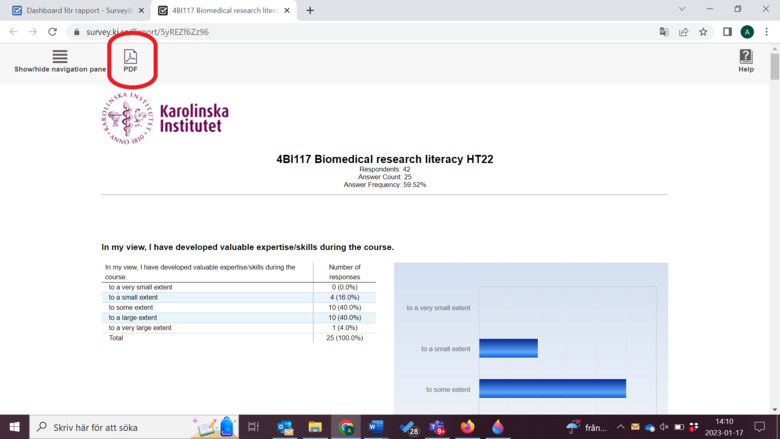
By clicking on the report you find the link to the report that should be published. If you wish to send the report as PDF you find a button with the text PDF at the top of the report.
Limit of respondents
To ensure the anonymity of the students, it has been decided with a limit of five respondents for course evaluation surveys. This means that results and reports from surveys with fewer than five responses will be be exported. For questions, contact Zoe Säflund.