

How do I log in to KI RIMS?
On this page, you will find instructions showing how to log in and navigate the system.
Log in
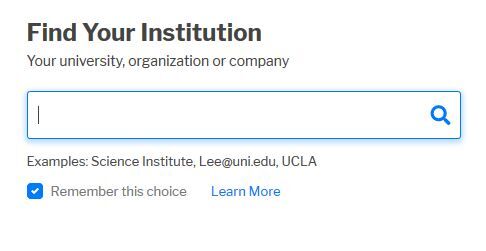
The first time you log in to KI RIMS, you need to select Karolinska Institutet as your institution in the selection box.
Make sure to tick the box next to Remember this choice so you don´t have to repeat this step in the future. Log in with your KI account details.
Homepage in KI RIMS
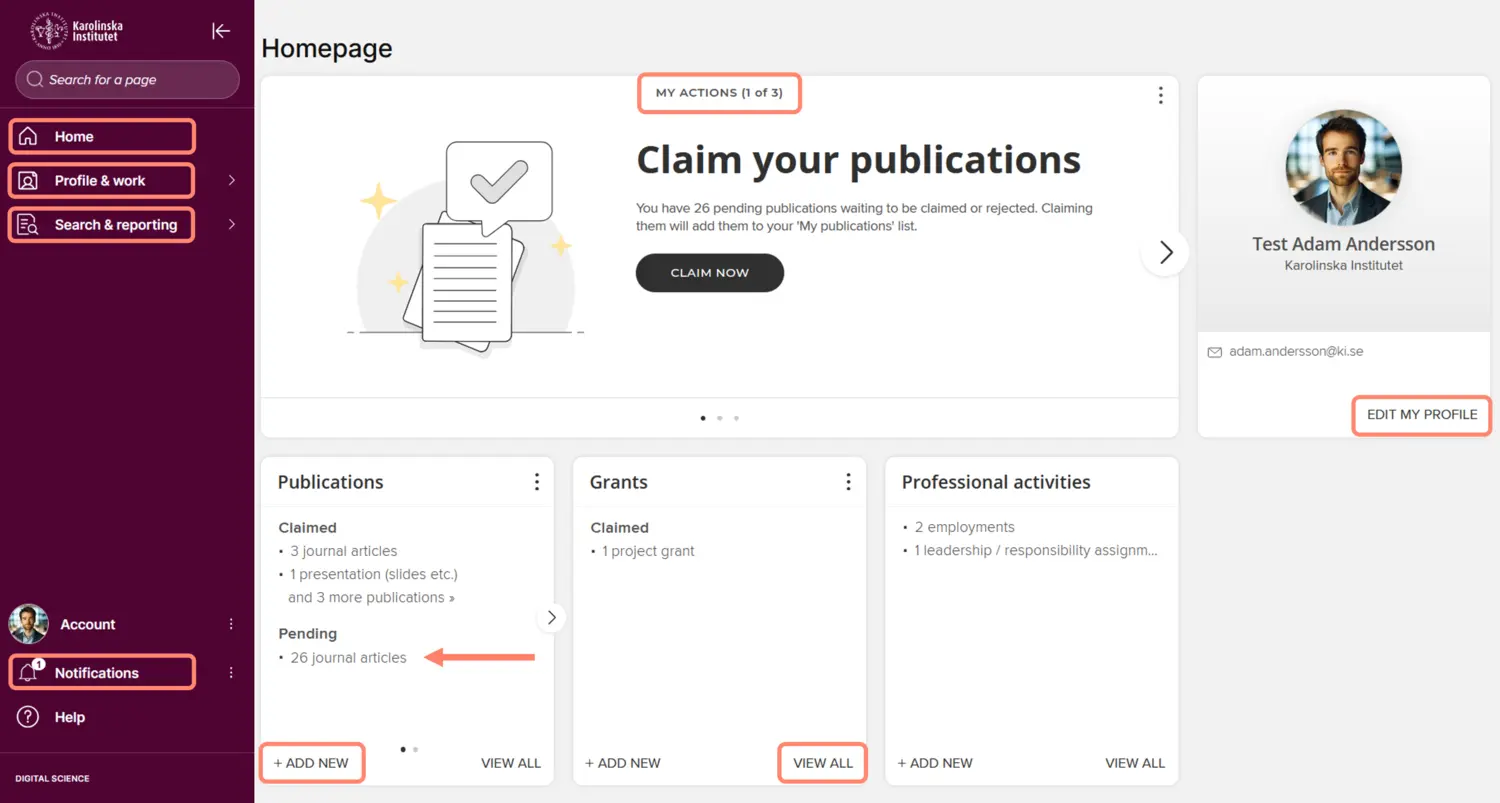
Once you have logged in, you will be taken to your KI RIMS homepage. Here you can:
- see notifications about tasks that require your attention and action under My actions. You will also find important notifications under the bell symbol in the bottom left menu.
- view and edit the description of yourself under Edit my profile. There is also a direct link to your public profile page on ki.se from here.
- get an overview of your profile data in the boxes for Publication, Grants and Professional activities. You can add new publications, grants and professional activities by clicking on +add new.
At the top of the menu on the left, there are three icons. The house (Home) takes you back to the home page. The other icons are headings that expand with more content when you hover over them with the cursor. You can also click on the KI logo to expand the headings.
- Profile & work includes the heading My Profile, which takes you to your profile page as others see it in KI RIMS. From here, you can also search for colleagues' profiles in KI RIMS using the Find a colleague function at the bottom right. Remember to enter your search with the last name first.
- Under Search & reporting, you will find the Reporting hub, where you can extract various types of reports.
Navigating in KI RIMS
Your KI RIMS profile currently consists of four main sections - Information about you (About), your publications (Publications), your research grants (Grants) and your professional activities (Professional activities). To these sections of KI RIMS, some data is automatically imported from different sources. In addition to that data, you can add and edit items and information manually. What you can or need to do varies depending on the type of content.
If you have editing rights for a group in KI RIMS, you will also see the menu option System admin, shown as a wrench icon. By selecting Group management under the wrench, you will find the option Manage groups, which takes you to a page showing KI’s organisational structure, where you can search for your group.
More information on how to edit your group’s information in KI RIMS is available on the Manage your research group information in KI RIMS page.
Edit your information in KI RIMS
From the KI RIMS homepage, there are several pathways to view and edit your information. The easiest way is to start from the boxes on the homepage. Here you can view all information about each content type and manage the information by clicking on View all and add new items manually by clicking on +add new. Since a lot of information, especially about publications, is retrieved automatically, it is a good idea to check what is available under View all before you start adding publications. You can also access the +add new function via the round plus icon in the top right corner after clicking on View all.
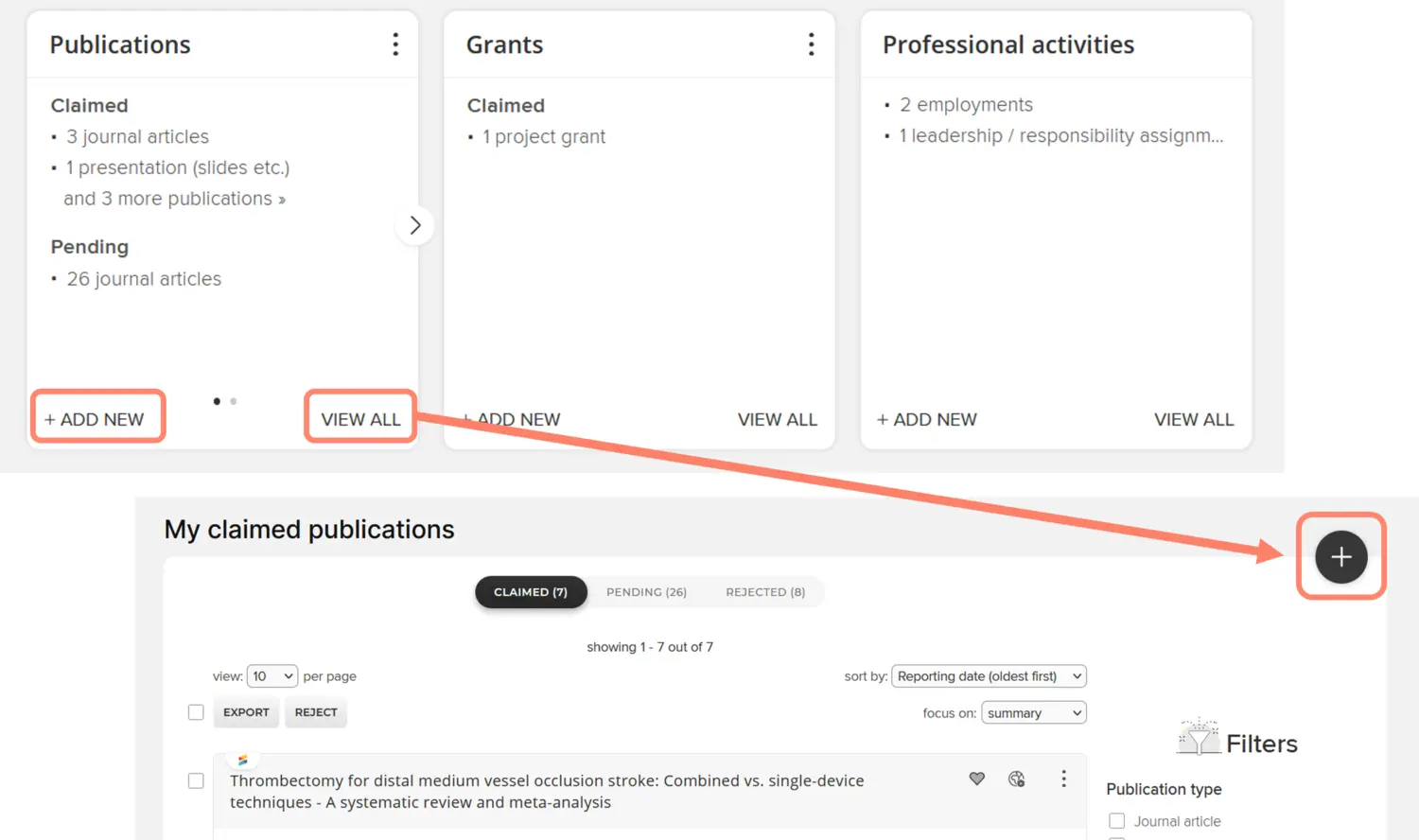
You can edit the description about yourself under Edit my profile. If you switch to View mode, you will see the same view that others see if they search for you via Find a colleague. When in View mode, The Manage-links under the Publications-, Grants- and Professional activities tabs lead to the same pages as the View all-links.
Another way to access the same content is via the Profile & work heading in the left-hand menu. Here you will also find other settings you can adjust on your profile.