

Account settings in KI RIMS
This page provides an overview of how to adjust various account settings in KI RIMS, such as search settings, researcher identifiers, display names, and access delegation.
Under the heading Profile & work in the left-hand menu, there are a few settings you can adjust for your account.
Adjust search settings
By searching for names and identifiers in external data sources, KI RIMS retrieves suggestions for publications that could be yours. You can adjust the settings for which publications that will be suggested. Alternative name variants are not transferred from the bibliometric system to KI RIMS. To control publication suggestions, you may need to add variants of your name that correspond to those in your publications. Go to Profile & work in the left-hand menu and select Search settings under Tools & settings.
Under Name variants, you can add different variants of your name in the format Last name, First name/First name initial (e.g. Bertilsson, Bertil or Bertilsson, B.). Under Addresses you can add the name of other organizations where you have published. Use only the most significant word, for example "Uppsala" and not "Uppsala University". Finish by clicking Save at the bottom of the page.
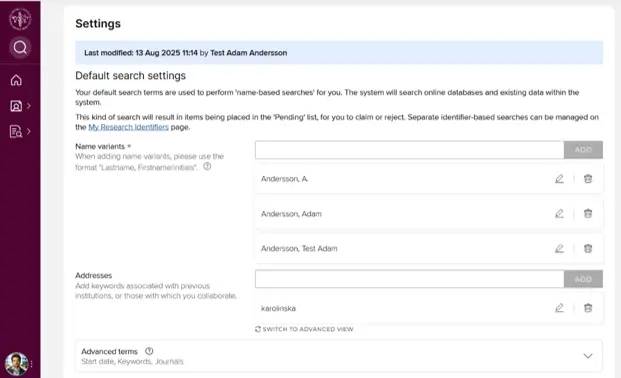
TIP: Leave the fields under Additional search terms empty to avoid making the search too narrow.
Claim researcher ID
Researcher ID makes it easier for KI RIMS to find publications that you are the author of. KI RIMS will suggest researcher IDs from ORCID, Dimensions, ResearcherID, arXiv, figshare, Scopus and SSRN based on the name variants you have added.
Select Profile & work in the left-hand menu and click on My research identifiers under Personal profile & identifiers.
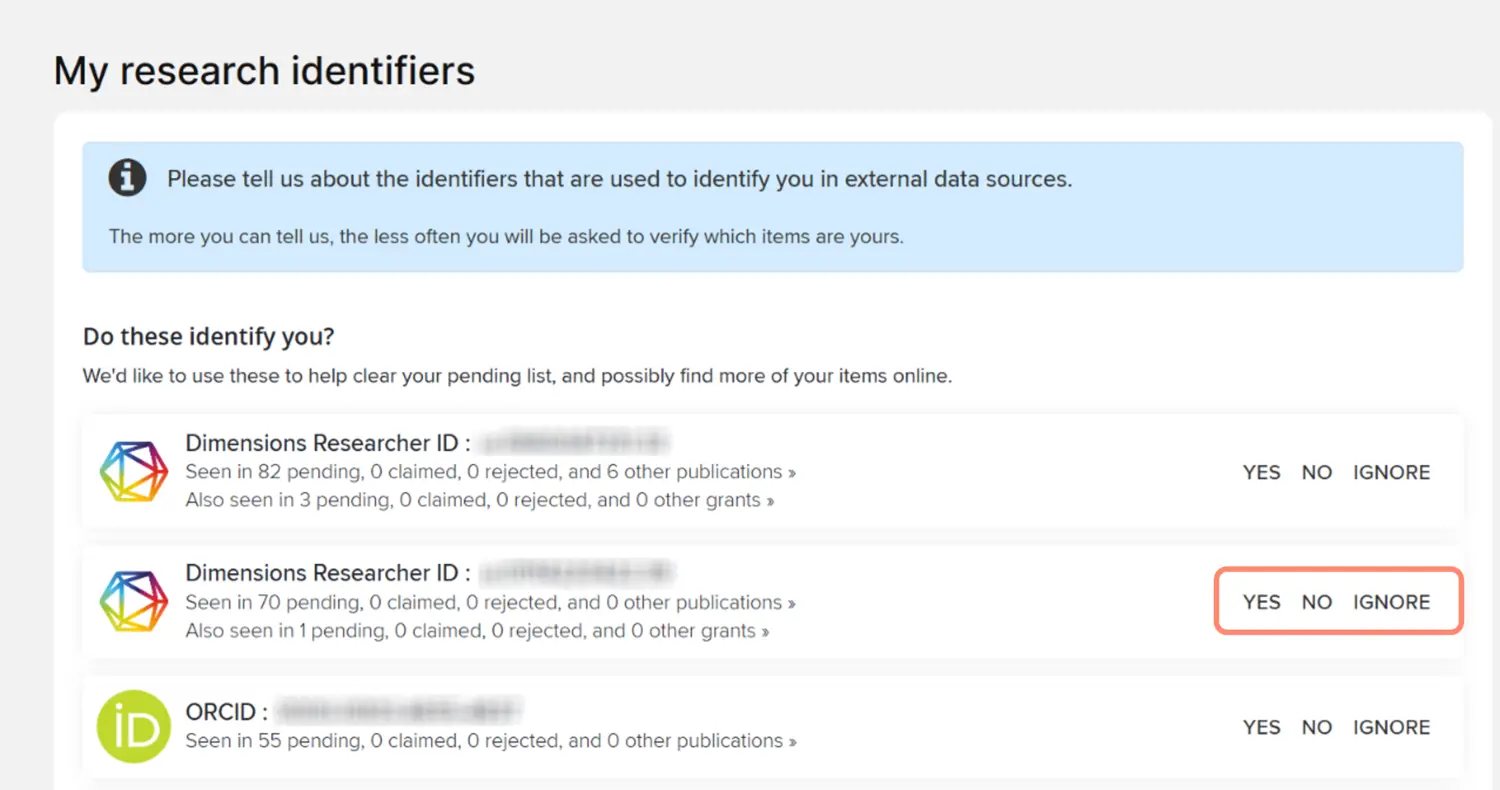
You will now see a list of suggested researcher IDs that may belong to you. If you do not know for sure whether an ID belongs to you, you can click on the line below the ID number, which in the example below reads "Seen in 11 pending, 0 claimed, 0 rejected an 0 other publications". This will bring up a list of the publications or grants associated with the ID, allowing you to assess whether it is a suitable ID for you to confirm.
Click Yes if the ID belongs to you, otherwise select No if it is not your ID. Select Ignore if you want KI RIMS to ignore proposals based on the ID even if it is yours.
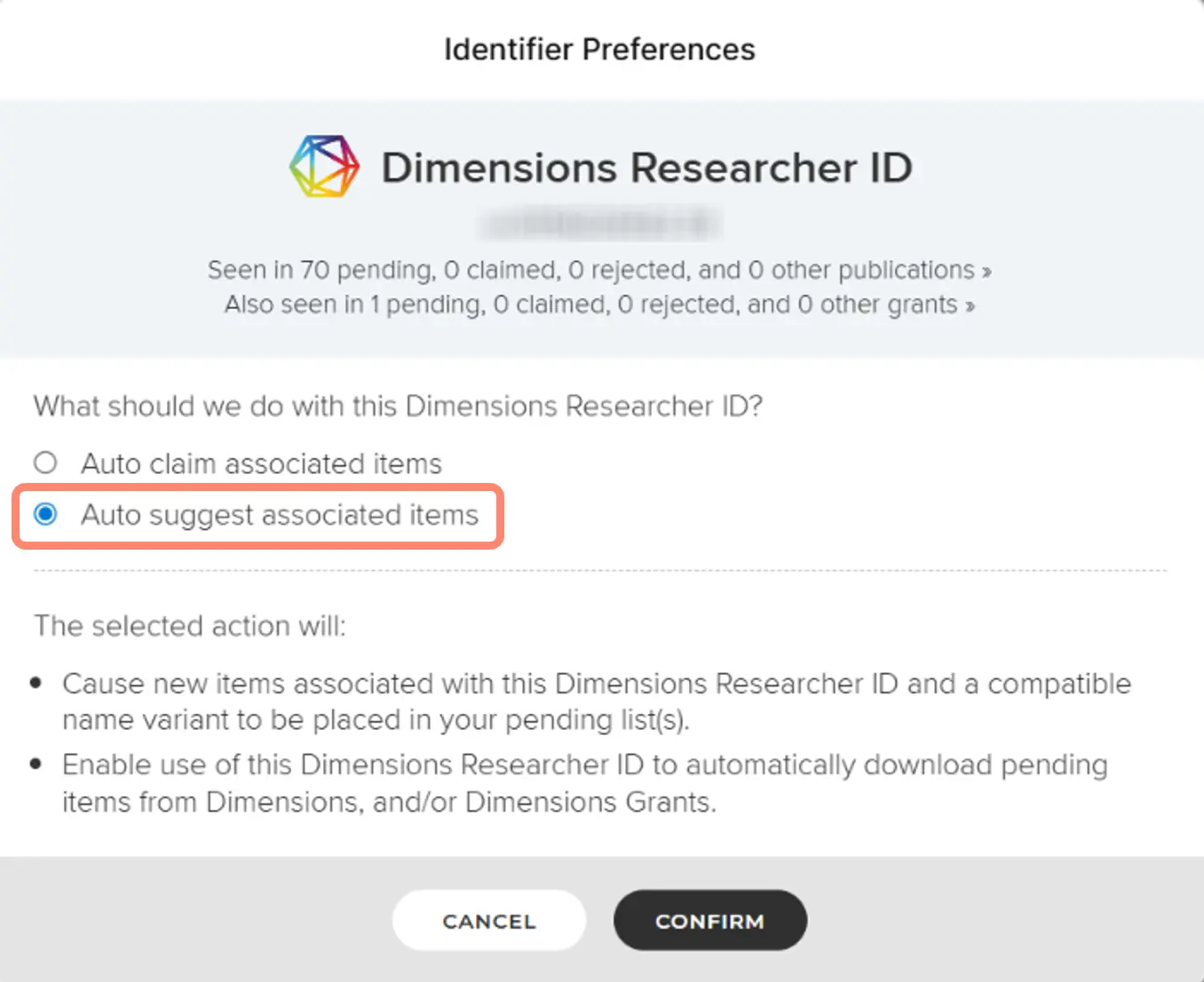
When you select Yes, a new window will open where you choose to have KI RIMS automatically claim or suggest publications associated with the ID. Select Auto suggest associated items so that publications are added to your pending list for you to review. Finish by clicking Confirm and Ok.
If KI RIMS cannot find all your researcher IDs, you can add more under Add external profiles. You can also add email addresses you have previously published under, under Add email addresses.
ORCID
When you have an ORCID ID among your claimed External profiles on the My research identifiers page, it will also be visible on your profile page on ki.se. If you do not want your ORCID ID to be visible there, click Manage and select Remove this ORCID account and ignore this ORCID. You will also have the option to create a connection to your ORCID account now, where you can choose to send information about your publications and your KI affiliation from KI RIMS to your ORCID profile page. There used to be a similar function in the bibliometric system, but it closed when KI RIMS was introduced.
To connect your ORCID ID to KI RIMS, go to ORCID settings under Profile & work > Personal profile & identifiers in the menu. Click the Connect your ORCID ID button, log in and select Authorize access.
When you give KI RIMS permission to read data from and send data to ORCID, a longer menu opens where you can limit the publications to be sent. If you make no other choice, KI RIMS only sends the publications that are published/published online where your relationship to the publication is set to Public. There is also a synchronization button and the possibility to send your KI affiliation to ORCID. There you can also revoke the link and remove the information from your ORCID profile page sent from KI RIMS.
Set preferred name
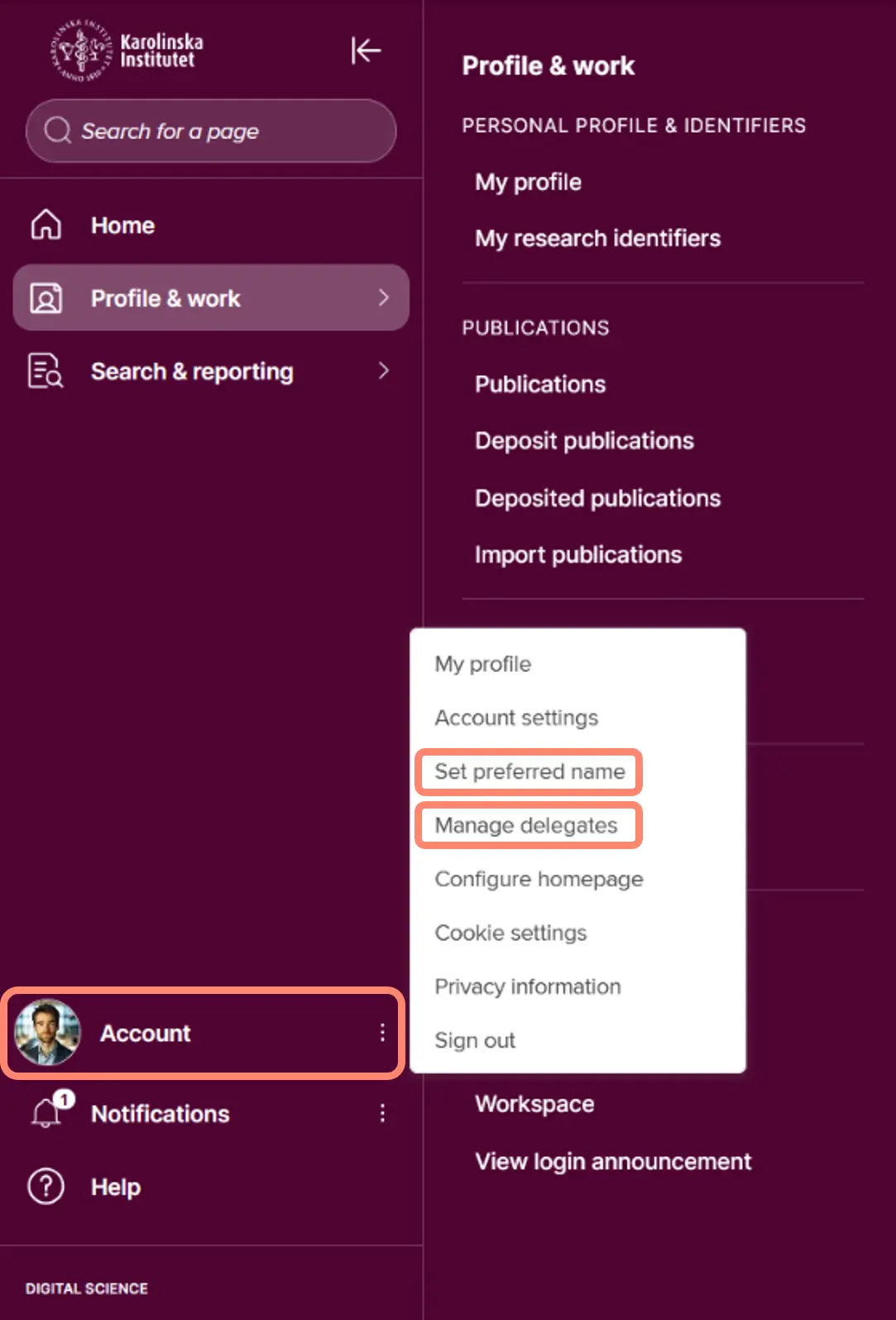
If you click on your profile picture/the Account heading in the left-hand menu, you will find the heading Set preferred name. Here you can edit your name as it appears in KI RIMS and on ki.se. Please note that the pre-filled text cannot be selected or deleted, but it will disappear automatically as soon as you start typing in the field. If you do not enter a preferred name in KI RIMS, your first and last name will be displayed as registered in IDAC. For employees, this is the same name that is registered with the Swedish Tax Agency. If you are affiliated to KI, or if you for any reason do not wish to use your registered legal name, you may also need to contact the IDAC/UBW administrator at your department for correction.
Delegate access
You can choose to give one or more people access to manage your information in KI RIMS. Your chosen delegates login and access your account through the Impersonate function. Remember that you are always responsible for ensuring that the information in your account is correct and up-to-date, even if you have delegated editing rights to someone else.
Manage delegates for your account
To give someone editing rights to your account, click on your profile picture/the Account heading in the left-hand menu and select Manage delegates.
Search for last name of the person that you want to give editing rights to for your account. Click on the name and confirm by clicking on Update delegates. If you want to add more people, repeat the procedure. If you want to remove someone from your list of delegates, click on the trash can icon next to the name and confirm with Update delegates.